T-HFND-008-012
You can type values to position your elements using exact coordinates.
NOTE: To learn more about the layer parameters, see .
How to position an element with coordinates
- In the Timeline view, select a layer.
- In the Layer Properties view, select Enable 3D option to display the 3D parameters in the Layer Properties.
- In the Position section, select one of the following options:
- Separate to independently edit the different coordinate fields. Continue to step 3.
- 3D Path to use a 3D path function when animating your element. Continue to step 4.
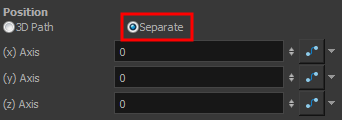
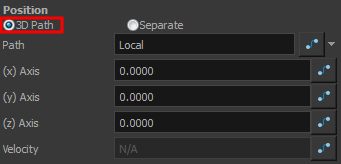
- In the (x), (y) and (z) Axis fields, type in a new coordinates corresponding to the desired position.
As you type in values, the element’s position is updated in the Camera view.
- Use the Function
 buttons to create function curves and add keyframes to animate the parameter.
- In the Scale section, select one of the following options:
- Locked to resizes the element uniformly in three directions.
- Separate to resize the element in any direction without affecting the others.
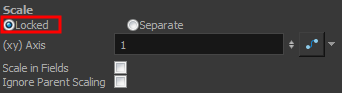
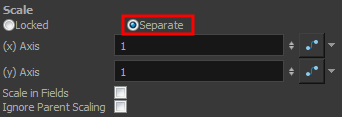
- In the (x) and (y) Axis fields, type in a new coordinates corresponding to the desired position
- Use the Function buttons to create function curves and add keyframes to animate the parameter.
- In the Rotation section, Angle z field, type in a degree value for the rotation angle. Note that you can enter values greater than 360 and -360 degrees. If you enter 720, the object will rotate twice.

- In the Skew field, type in a degree value between -90 to 90 for the skew angle.

- In the Pivot section, type in the desired coordinate value to reposition the transformation pivot. This will change the permanent position of the pivot.

Topics List
- About the Animate Mode
- Selecting Layers
- About the Transform Tool
- Repositioning the Temporary Pivot
- Panning with the Transform Tool
- Rotating with the Transform Tool
- Scaling with the Transform Tool
- Skewing with the Transform Tool
- Flipping with the Transform Tool
- About Advanced Animation Tools
- About the Layer Properties View
- Positioning with Coordinates
- About Multiplane
- Top View
- Side View
- Perspective View
- Setting Up a Multiplane
- Activity 1: Creating a Multiplane Layout