T-SBADV-005-009
If you no longer need a tool preset, you can delete it.
How to delete a tool preset
- In the Tool Presets toolbar, click the Manage Tool Presets
 button.
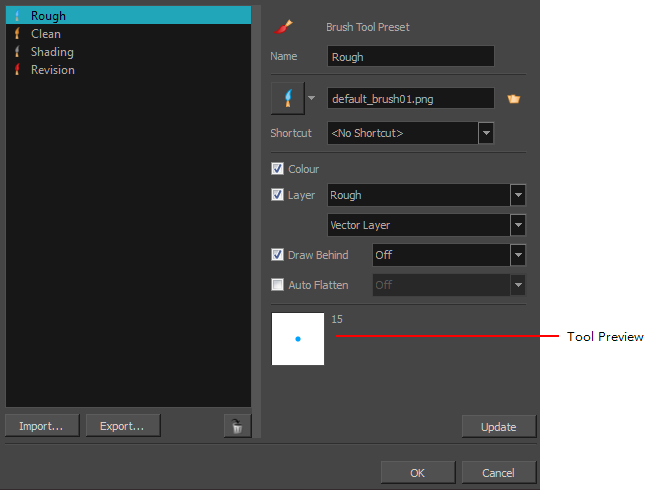
- From the list of tool presets on the left, select a preset to delete and click the Trash icon.
Topics List
- About Drawing Space Efficiency
- Displaying the Grid
- About Quick Swap Shortcut
- Antialiasing OpenGL Lines
- Changing the Drawing Tool Cursor
- About Tool Presets
- Creating Tool Presets
- Updating Tool Presets
- Deleting Tool Presets
- Importing and Exporting Tool Presets
- Locking the Tool Preset Layer Selection
- Cleaning up with the Tool Presets
- Adding a 3D Object as a Rendered Image in a 2D Scene
- Activity: Using a 3D Object as a Reference in a 2D Scene
- Creating a Stamp
- Deforming a Drawing Using the Perspective Tool
- About the Text Tool
- Adding Text
- Formatting Text
- Resizing the Text Box
- Breaking Text
- Modifying Text
- Using the Select by Colour Tool