T-HFND-004-007A
Use the Cutter tool to trim and cut your artwork.
How to cut drawings
- In the Tools toolbar, select the Cutter
 tool or press Alt + T.
- In the
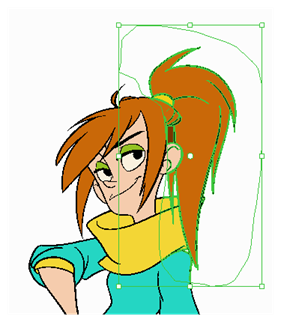
- To delete the selected area, press Del.
- To move the selection, drag it to a new area.
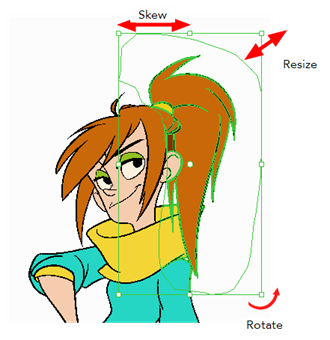
- Use the bounding box controls to scale, skew, or rotate the cut piece.
Next Topic
About the Contour Editor Tool
Topics List
- Drawing with the Brush or Pencil Tool
- About the Tool Properties View
- About the Brush Tool
- Drawing with the Brush Tool
- Drawing with the Pencil Tool
- About the Select Tool
- Selecting
- About Shape Tools
- Drawing with the Rectangle, Ellipse, and Line Tools
- About the Cutter Tool
- Cutting Artwork
- About the Contour Editor Tool
- Reshaping a Drawing with the Contour Editor Tool
- About the Pencil Editor Tool
- Reshaping Pencil Lines
- About the Centerline Editor
- Reshaping Brush Strokes
- About the Eraser Tool
- Erasing
- Modifying the Eraser Settings
- Painting Drawings
- Inking Lines
- About the Stroke Tool
- Drawing with the Stroke Tool
- Closing Gaps
- About the Edit Gradient and Texture Tool
- Using the Edit Gradient and Texture Tool
- Activity 1: Basic Drawing